
After signing up for hosting with us, if you bought your domain name from Godaddy.com, follow these steps to “point” it to your hosting account with us here at Mint Plugins:
1. Sign in to your GoDaddy Account Manager.
2. Next to Domains, click Launch.

3. Select the domain name that you want to use.
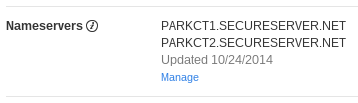
4. Under Nameservers, click Manage.
5. Under Setup type, select Custom.
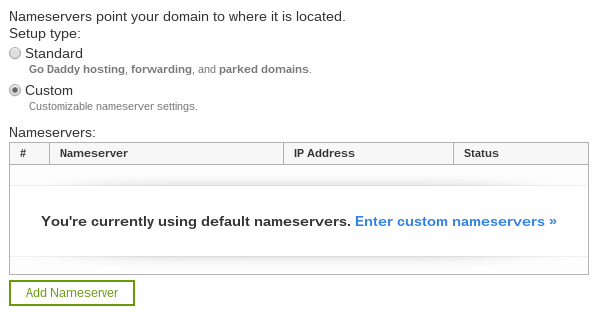
6. Select Add Nameserver.
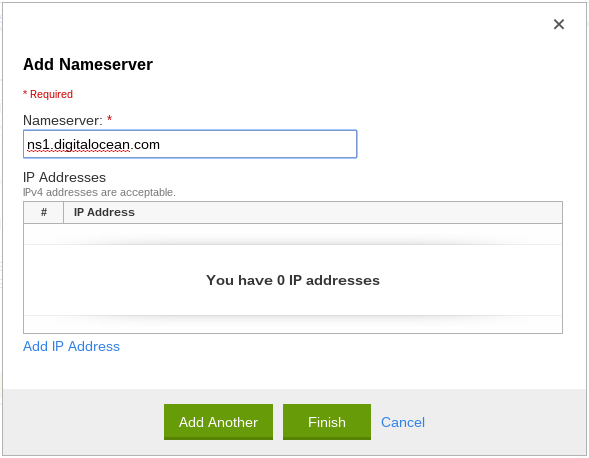
7. Enter the following nameservers:
- ns1.digitalocean.com
- ns2.digitalocean.com
- ns3.digitalocean.com
Note: You’ll need to hit Add Another for each nameserver. Once you have entered all three, you can hit Finish to return to the nameservers menu. Also note that you will not need to add any IP addresses when adding this type of nameserver.
8. Click Save. That’s it! Note that it may take up to 24 hours for the domain to “propogate”. That’s the technical term for the delay while the internet catches up to this change in your domain name.